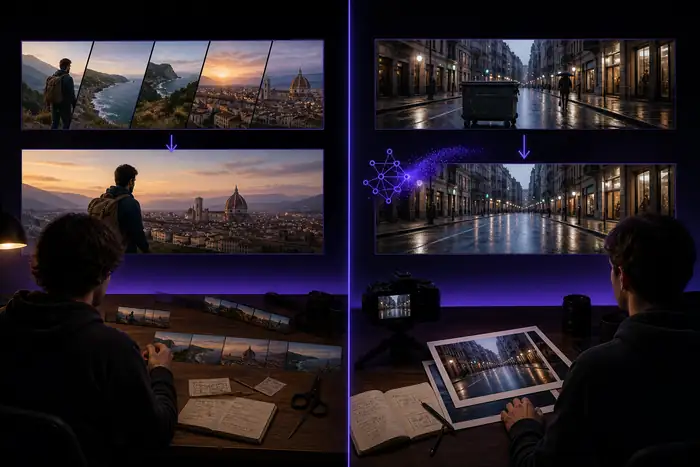
Make more from every cut with the media io video editor.
The media io video editor brings trimming, motion, sound and export into one focused pass. Start with the
media io ai video generator
for a scene, shape a still with the
media io image generator,
then refine the result without losing the original direction.
A useful video editor should reduce the distance between a rough clip and a finished idea. Media.io keeps
the important decisions close together: what stays, what moves, what the viewer hears and where the final
frame belongs. The sequence below is deliberately simple, so a first-time creator can start quickly while
an experienced editor still has room to refine.
Source
Bring in the starting media.
Use a clip, still image, sound file or generated scene as the first anchor for the project.
Shape
Cut for rhythm and clarity.
Trim the slow parts, arrange the strongest moments and use motion or transitions only where they improve the story.
Share
Prepare the final frame.
Choose the right shape for the destination, check the soundtrack and export a version ready for its audience.
02 / Mechanisms that matter
Four mechanisms keep every cut moving.
The best route depends on the work in front of you. These use cases show how the editor supports different
starting points without forcing every creator into the same workflow.
Four practical starting points
Creator / channel
Short-form storytellers
Turn several phone clips into a faster opening, a clearer middle and a closing beat that gives the audience a reason to stay.
A connected edit is easier to evaluate when each stage has a job. Use this side-by-side view to decide
whether you need a quick finishing pass or a more deliberate story build inside Media.io.
Media.io editing workflow compared with a basic one-pass editor
Capability
Connected Media.io pass
Basic one-pass edit
Trim and reorder clips
Included
Included
Start from generated scenes
Connected
Separate step
Animate a still image
Available
Often separate
Shape music around the cut
One workflow
Manual handoff
Prepare social aspect ratios
Plan per output
Usually available
Keep visual direction nearby
Core advantage
Depends on tools
Export a polished draft
Final step
Final step
Import
Start with what already exists instead of rebuilding the brief.
Direct
Make the next creative decision while the previous one is still visible.
Export
Choose a destination shape before the final render, not after.
04 / Honest constraints
Know the limits and edges.
Media.io is designed to shorten the route from idea to shareable video, not replace every specialist
production tool. Knowing where the route is strongest helps you choose the right starting point and avoid
unnecessary rework.
Caveat 01
Long-form timelines need discipline.
A quick web workflow is most comfortable when the story has a clear scope. Large projects with many nested scenes may need tighter organization.
Workaround: divide a long project into clear chapters and export deliberate assembly drafts.
Caveat 02
Audio mixing is not a recording studio.
The editor can help place sound and balance a visual sequence, but detailed multitrack mastering belongs in a dedicated audio environment.
Workaround: finish the visual timing first, then bring a mastered track back for the final pass.
Caveat 03
Pixel-perfect compositing has a ceiling.
For intricate VFX, frame-accurate keying or highly specific layer math, a specialist compositor offers more granular control.
Workaround: use Media.io to establish the cut and visual direction before specialist finishing.
Caveat 04
Browser work depends on a stable connection.
Uploads and generated media need a reliable session, especially when source files are large or the project uses several visual assets.
Workaround: prepare lightweight selects, keep source files organized and save each meaningful version.
05 / Quick planning tool
Answers before the first cut.
Use the small estimator to turn a rough project length into a practical starting expectation. It is a
planning aid, not a quote: actual processing depends on resolution, source media and the creative route
you choose.
Edit planner
Estimate a first pass.
Move the slider to see an approximate working file, processing cost and time saved by a connected pass.
1.8 GBworking size
$0starting cost
24 mintime saved
You can assemble clips, trim scenes, add motion, work with sound, prepare different aspect ratios and export a polished video from a connected creative workflow.
Yes. Start with your footage, then shape the opening, pacing, captions, supporting visuals and final frame for a channel upload or a shorter cut.
It is designed for a low-friction first pass. Begin with a short sequence, make one decision at a time and use the preview to check whether each change improves the story.
Yes. A still image can become a moving scene, and audio can guide the rhythm of a visual sequence. That makes the editor useful for social clips, product stories and music-led work.
Make a 15-to-30-second piece with one clear idea: a product reveal, a visual quote, a music beat or a three-shot story. A small finished cut teaches you more than an oversized unfinished project.