Portrait creator
Make a portrait breathe
Use a stable face, a simple background and restrained camera movement for an editorial loop or opening shot.
media io text to videoImage / motion / direction
Media io image to video gives a still frame a sense of motion without making you rebuild the whole idea. Start with one image, choose a visual direction, then inspect the result for framing, subject stability, timing and useful next steps.
Start creating for freeC1 / Structural view
The key change is simple: an image stores a moment, while a video has to carry that moment through time.
| Attribute | Image input | Video output |
|---|---|---|
| Time | One fixed instant | A sequence with duration |
| Composition | Known framing | Framing can shift or crop |
| Subject | Single pose or state | Movement must stay coherent |
| Background | Static environment | Depth and parallax may appear |
| Sound | No native timeline | Can be edited with audio later |
| Review | Judge one frame | Judge the complete motion arc |
| Best use | Mood, subject and style reference | Reels, scenes, product moments and loops |
C9 / Before and after
Image-to-video conversion does not preserve every pixel as a locked reference. It interprets depth, movement and camera intent, so the strongest results begin with a clear subject and enough visual information around it.
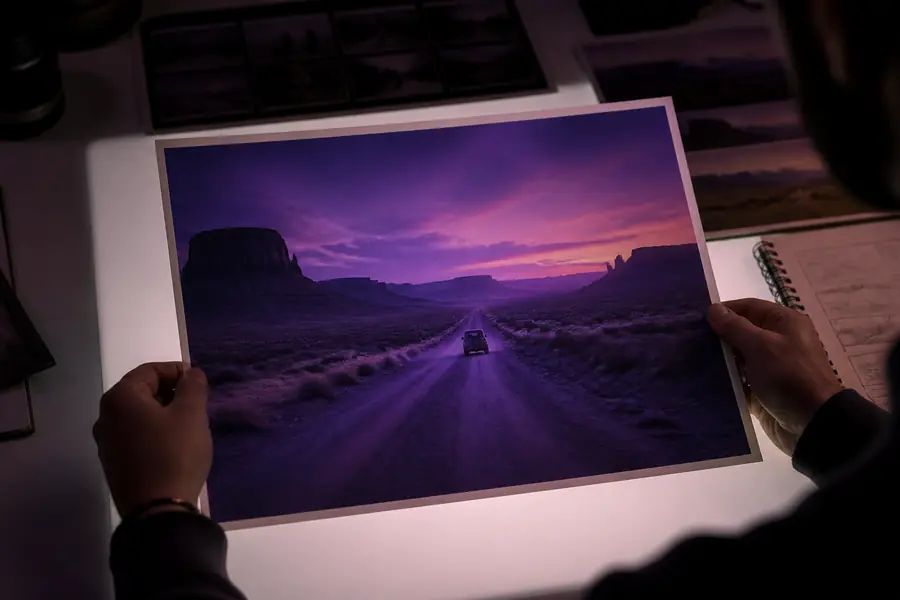
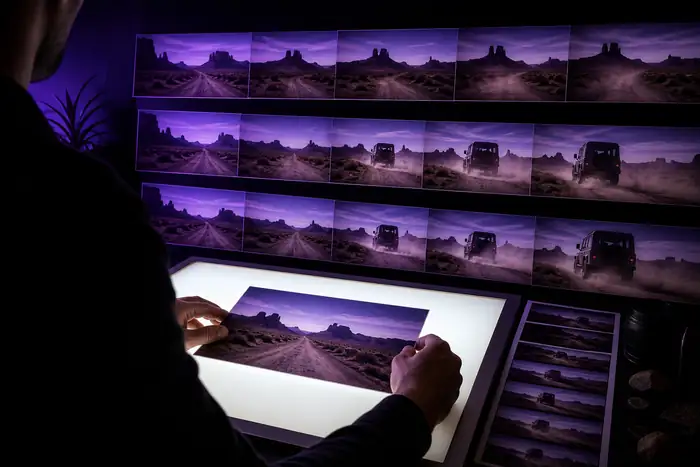
Expect small changes around hair, hands, reflections, fine text and distant objects. Treat the first pass as a direction to review, not a promise that every detail remains untouched.
C6 / Starting points
Choose the route that matches the material you already have, then use the output as a focused draft instead of a finished film.
Portrait creator
Use a stable face, a simple background and restrained camera movement for an editorial loop or opening shot.
media io text to videoMusic visual artist
Begin with cover art or a still moodboard, then shape movement that can sit behind a track without distracting from it.
media io audio to videoContent editor
Turn a thumbnail, storyboard panel or existing shot into a short transition that gives an edit more breathing room.
media io video to videoProduct marketer
Animate a clean product image into a short concept for a hook, a social placement or a campaign direction.
explore the AI video workflowC11 / Quality check
Review the result in order. A technically moving clip is only useful when the motion still supports the original frame.
Confirm the subject, crop and key details still resemble the uploaded image.
Look for sudden jumps, warping or camera movement that feels stronger than the brief.
Pause on hands, hair, product lettering, reflections and other high-risk details.
View it at the intended crop and speed before adding captions, music or a larger edit.
Keep exploring
Related routes help you choose a better starting format when a still image is not the only asset in the project.
C7 / Honest constraints
A good image-to-video workflow is easier to use when its boundaries are clear.
Small text, jewelry, fingers and complex patterns may change as motion is generated.
Workaround: use a cleaner source and keep movement subtle.
A generated clip is a motion pass, not automatically a complete story with pacing, captions and sound.
Workaround: take the strongest result into an editor for the finishing pass.
The first motion direction may not match the mood, speed or camera behavior you had in mind.
Workaround: adjust the direction and compare short variations.
A practical motion pass